
Download Scalp – Share iCal Calendars via FTP, Secure, Free Tool
Overview
Scalp is a lightweight utility designed for Mac users who need a quick and secure way to share iCal calendars with colleagues, friends, or the public. By leveraging FTP or SFTP, Scalp publishes your calendar file directly to a web‑accessible folder, allowing anyone with the correct URL to subscribe to updates in real time. The application supports password‑protected SFTP connections, so private calendars stay confidential while still being easy to distribute.
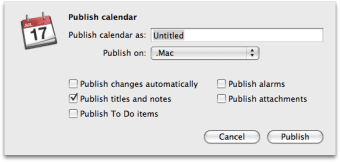
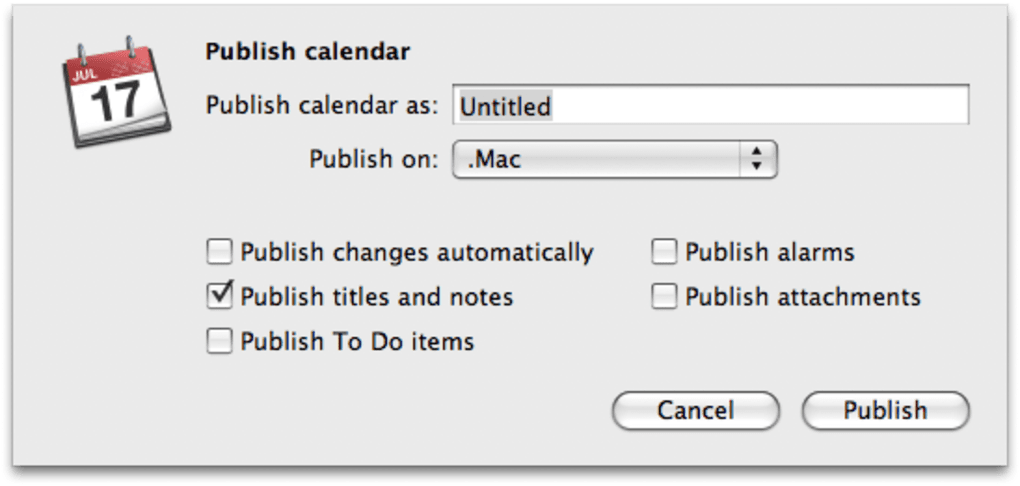
Scalp also lets you fine‑tune what gets published – you can choose to include tasks, event titles, notes, automatic modifications, alarms, and even file attachments. This flexibility means you can create multiple “views” of the same calendar, each tailored for a different audience. While the initial setup can be a bit tricky—especially when configuring FTP credentials for a .Mac account—the once‑only configuration pays off with hassle‑free, automatic syncing of calendar changes.
The tool runs on classic Mac OS and early versions of macOS, though users on PowerPC hardware may encounter occasional instability. Overall, Scalp offers a clever hack for anyone who wants to turn their iCal data into a publicly reachable feed without paying for a hosted calendar service.
Key Features and Publishing Options
- FTP & SFTP Publishing: Seamlessly upload iCal files to a remote server using standard FTP or the more secure SFTP protocol.
- Password‑Protected Access: When using SFTP, set a username and password to keep private calendars hidden from unauthorized users.
- Selective Data Export: Choose which calendar elements are published – tasks, titles, notes, automatic modifications, alarms, and attachments can each be toggled on or off.
- Multiple Publication Profiles: Create up to five distinct publishing settings, allowing you to generate different versions of the same calendar for varied audiences.
- Automatic Sync: Once configured, Scalp monitors your iCal file and pushes updates automatically whenever you add or edit events.
- Lightweight Design: The application runs with minimal CPU and memory overhead, making it suitable for older Mac hardware.
- Free to Use: Scalp is offered at no cost, providing a budget‑friendly alternative to commercial calendar‑sharing services.
Each of these features works together to create a reliable workflow for calendar distribution. For example, a project manager can publish a “public” version of the team calendar that includes only event titles and dates, while a “private” version containing tasks, notes, and attachments remains locked behind SFTP authentication. Because the tool directly writes the .ics file to your server, subscribers always receive the most recent version without needing to re‑download a new file manually. This real‑time capability is especially valuable for fast‑moving environments such as event planning, education, or remote collaboration.
Installation, Configuration & Compatibility
Getting Scalp up and running involves three main steps: downloading the installer, configuring your FTP/SFTP connection, and defining your publishing profiles.
1. Download & Install
Visit the official Scalp download page and click the “Download for macOS” button. The installer is a standard .dmg file. Open the disk image, drag the Scalp icon into your /Applications folder, and launch the program. macOS may prompt you to confirm that you trust the developer; simply click “Open” to proceed.
2. Set Up FTP/SFTP Credentials
Upon first launch, Scalp presents a configuration window. Enter the hostname of your .Mac or external server, choose the protocol (FTP or SFTP), and provide the appropriate username and password. For SFTP, you can also import an SSH key if you prefer key‑based authentication. Test the connection using the “Validate” button – a green check indicates a successful link.
3. Define Publishing Profiles
Navigate to the “Profiles” tab and click “New Profile.” Give the profile a descriptive name (e.g., “Team Calendar – Public”). Then select which calendar elements to include using the checkboxes for tasks, titles, notes, automatic modifications, alarms, and attachments. You can also specify a remote directory on the server where the .ics file will be stored. Save the profile, and repeat the process for any additional versions you need.
4. Running & Updating
Once a profile is saved, Scalp runs in the background, monitoring your iCal database for changes. When an event is added, edited, or deleted, Scalp automatically re‑exports the .ics file and uploads it to the designated server location. You can also trigger a manual upload from the menu bar if you prefer more control.
Compatibility
Scalp was originally built for classic Mac OS and early versions of macOS (10.0‑10.4). It runs without issue on Intel‑based Macs and is compatible with macOS 10.5 through 10.9 with minor adjustments. PowerPC users may experience occasional crashes, especially when handling large attachment files, so it is recommended to keep the calendar size modest or upgrade to a newer Mac if stability is critical. The application does not have native Windows, Android, or iOS versions, but the generated .ics files can be subscribed to from virtually any platform that supports the iCalendar format.
Overall, the installation process is straightforward for users familiar with FTP, and the ongoing usage is virtually hands‑free once the profiles are defined. The only real learning curve lies in correctly configuring the server connection, especially if you are using a third‑party hosting provider that requires passive mode or specific port settings.
Conclusion – Pros, Cons, FAQ & Call to Action
Pros & Cons
- Pros
- Free and lightweight, perfect for older Mac hardware.
- Supports both FTP and secure SFTP, keeping private calendars safe.
- Highly customizable publishing profiles for different audiences.
- Automatic synchronization ensures subscribers always have the latest data.
- No need for a third‑party calendar hosting service.
- Cons
- Initial FTP/SFTP setup can be confusing for non‑technical users.
- Stability issues reported on PowerPC machines and very large calendars.
- Lacks a native Windows or mobile app; sharing is limited to .ics files.
- No built‑in calendar viewer – you must rely on external calendar clients.
Frequently Asked Questions
Can I use Scalp with a commercial web host?
Yes. As long as the host provides FTP or SFTP access, you can point Scalp to the server, specify a directory, and publish your .ics file. Be sure to use SFTP for any calendars that contain sensitive information.
Do I need to keep Scalp running all the time?
Scalp runs as a background agent and monitors your iCal database. For automatic updates, keep it active. If you only need occasional publishing, you can manually trigger an upload and then quit the app.
Is there a limit to the number of profiles I can create?
Scalp allows up to five distinct publishing profiles. This limit is intentional to keep the interface simple, but it covers most use‑cases such as public, private, task‑only, alarm‑only, and attachment‑rich versions.
What file format does Scalp publish?
Scalp exports your calendar as an iCalendar .ics file, which is supported by virtually every calendar client on macOS, Windows, Android, and iOS.
Can I secure my calendar with a password?
When you use the SFTP protocol, you can set a username and password for the server connection. This ensures that only authenticated users can download the .ics file.
Final Thoughts & How to Get Started
Scalp fills a niche that many modern calendar services overlook – the ability to publish iCal files directly to a web server without a subscription fee. If you’re comfortable configuring FTP credentials and you need a reliable, low‑cost way to share calendars across teams, Scalp is a solid choice. Its selective publishing options let you tailor the data for different audiences, while the automatic sync feature eliminates manual uploads. Keep in mind the potential stability quirks on older PowerPC machines and the lack of native Windows or mobile apps; if those are deal‑breakers, you may want to explore alternative cloud‑based solutions.
Ready to give Scalp a try? Download Scalp now and start publishing your iCal calendars securely via FTP or SFTP. Experience the freedom of a self‑hosted calendar feed without paying for a premium service.
Scalp delivers a clever, no‑cost method for publishing iCal calendars via FTP/SFTP. Its selective publishing and automatic sync are standout features, though the initial setup can be a bit daunting for newcomers. Overall, it’s a reliable tool for Mac users who need control over calendar distribution.







